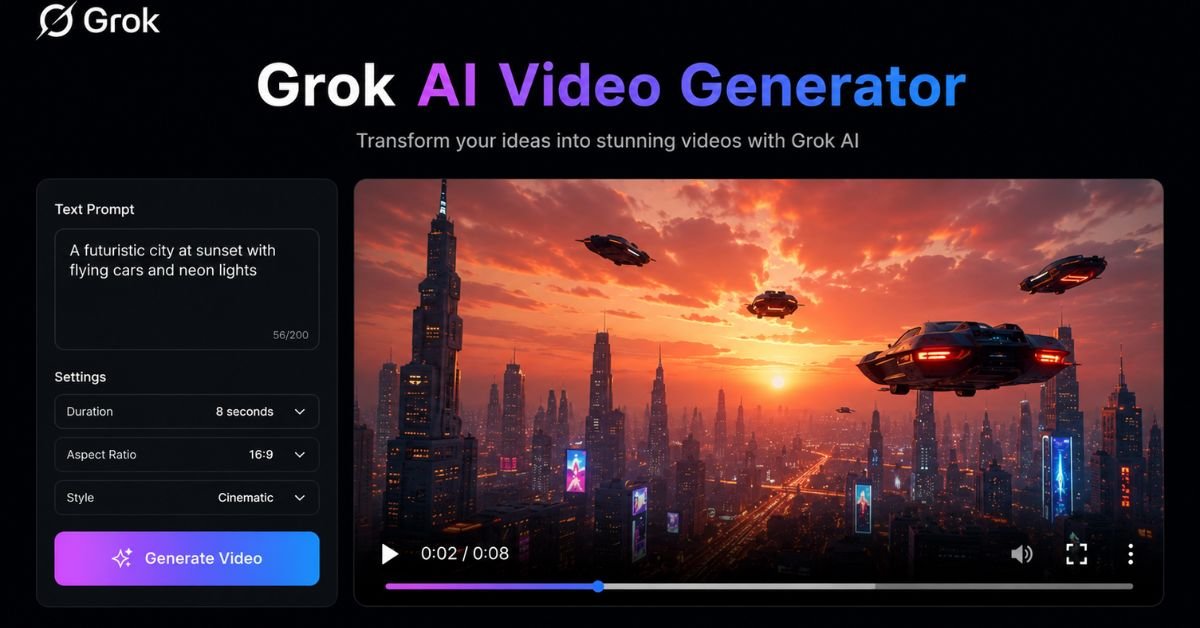
If you’ve been searching for a fast, affordable AI video tool that doesn’t demand a steep learning curve, Grok AI video generator has entered the conversation in a serious way. Built by Elon Musk’s xAI, Grok Imagine has evolved from a simple image generator into a full-featured text-to-video and image-to-video platform — one that generated over 1.245 billion videos in just 30 days following its February 2026 launch.
This guide covers everything: how Grok video generation works, what it costs, how to use it step by step, how it compares to Sora and Veo, and where it falls short. Whether you’re a social media creator, developer, or just curious, you’ll leave with a clear picture of what Grok video can — and can’t — do.
What Is Grok AI Video Generator?
Grok’s video generation capability lives inside Grok Imagine, xAI’s unified image and video creation engine. It’s not a separate app — it’s built directly into the Grok chat interface at grok.com and accessible via the X app.
The engine that powers it is called Aurora, a massive autoregressive model trained on a cluster of 110,000 NVIDIA GB200 GPUs. That compute investment is one reason Grok generates video unusually fast — standard clips render in as little as 5–20 seconds, while more complex scenes wrap up within 30 seconds.
What Grok Imagine Supports
Grok Imagine handles four distinct creative workflows:
- Text-to-video — Type a description, get a video clip
- Image-to-video — Upload a still image and animate it with motion and atmosphere
- Video-to-video editing — Modify an existing clip using natural language instructions
- Reference-to-video — Use a face or style as a visual anchor across clips
As of mid-2026, the current video model is grok-imagine-video-1.5-preview, available through both the consumer Grok interface and the xAI developer API.
Technical Specifications and Output Quality
Here’s what Grok Imagine video actually produces:
| Specification | Details |
|---|---|
| Max Duration | Up to 30 seconds (SuperGrok); 6 seconds (Lite) |
| Resolution | 720p (standard); 480p (lower tiers) |
| Frame Rate | 24 FPS |
| Aspect Ratios | 16:9, 9:16, 1:1, and more |
| Audio | Native — dialogue, music, ambient sound |
| Generation Speed | 5–30 seconds |
The 720p ceiling is Grok’s most discussed limitation. Competing tools like Veo 3.1 and Kling 3.0 support 1080p. For polished brand work or cinematic production, that resolution gap matters. For social media content, reels, TikTok hooks, and product teasers, 720p at 24 FPS is perfectly usable.
Prompt Fidelity
Grok’s Aurora engine does well with straightforward scenes — a product shot with subtle motion, a character in a specific setting, an animated landscape. Complex physics, fine text rendering, and intricate crowd scenes are less reliable. Hands and body proportions can distort, and lip-sync accuracy, while improving, isn’t quite where Sora or Seedance are.
For prompt-based generation, the sweet spot is a single subject with a clear action, specific camera direction, and a defined mood.
Native Audio — Grok’s Standout Feature
Unlike most competitors that add sound as a separate post-processing pass, Grok Imagine generates audio simultaneously with the video in a single render. That means dialogue, background music, ambient sound, and sound effects are synchronized to the visuals without any extra work. For creators who’ve spent time syncing audio in editing software, this is a genuine time-saver.
Grok Video Generation Modes
Grok offers three content modes for text-to-video generation:
- Fun Mode — Stylized, playful, great for memes and animated content
- Normal Mode — Balanced output suitable for most use cases
- Spicy Mode — More expressive content (requires activation; subject to content policy)
For most creators, Normal and Fun modes cover the majority of workflows. Spicy Mode has been at the center of content policy controversy — more on that below.
How to Use Grok AI Video Generator (Step by Step)
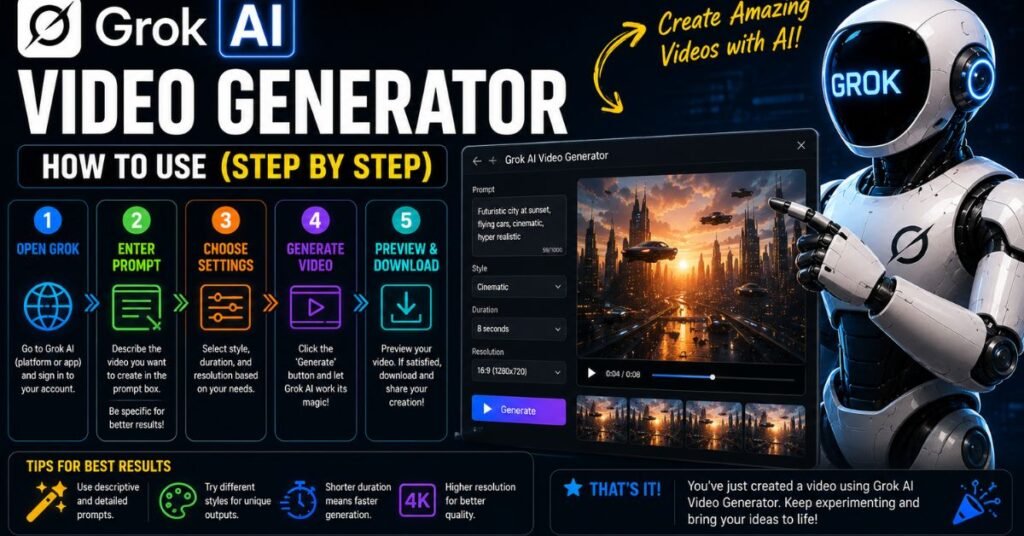
You don’t need to be a developer to start generating videos. Here’s the quickest path:
Step 1: Go to grok.com
Visit grok.com or open the Grok app on your mobile device. Free accounts get approximately 5 generation credits per day — enough to test the tool.
Step 2: Find the Imagine Section
Look for the Imagine tab or the image/video icon in the chat interface. This launches the Grok Imagine creation mode.
Step 3: Choose Image or Video Mode
Select “Video” if you want to generate from a text prompt. Select “Image to Video” if you have a still image you want to animate.
Step 4: Write Your Prompt
A strong Grok video prompt follows this formula:
Subject + Action + Camera Movement + Motion Detail + Mood + Duration
Example prompt: “A barista sliding a glowing coffee cup across a wet counter, camera slowly dollies forward, steam rising in slow motion, neon café atmosphere, cinematic lighting, 10-second clip.”
The more specific you are about motion and camera behavior, the better the output.
Step 5: Generate and Download
Hit generate. Your video renders in seconds. Download it directly or, if you’re on X, post it immediately with one click.
Advanced Prompting Techniques
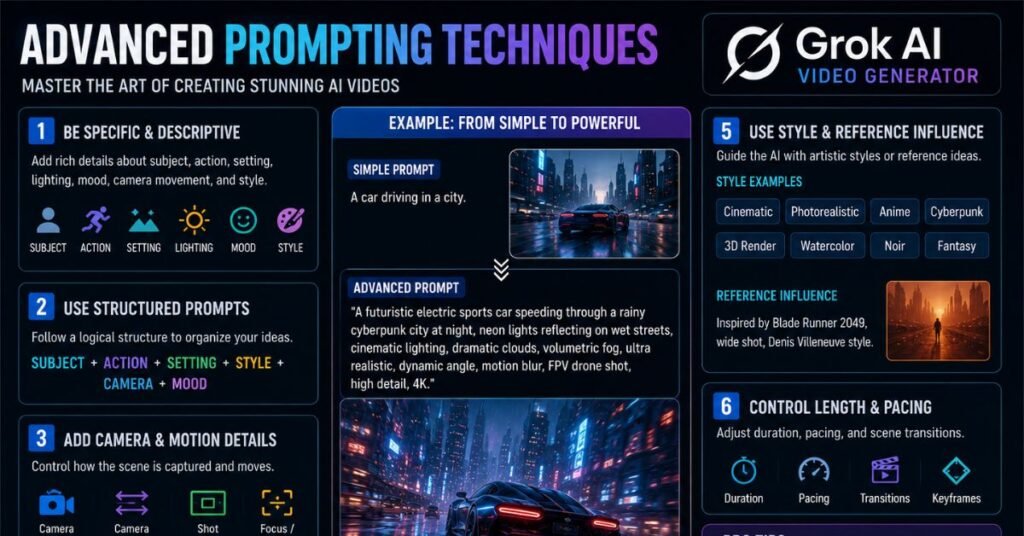
Getting consistently good results from Grok video takes practice. These techniques help:
Specify camera movement explicitly. Words like “dolly zoom,” “tracking shot,” “static wide angle,” and “handheld shaky” give the Aurora engine clear spatial instructions.
Describe the audio you want. Grok generates audio automatically, but prompts like “with ambient forest sounds” or “upbeat electronic background music” steer the output in the right direction.
One subject per clip. Multi-character or multi-scene prompts produce less reliable output. Generate individual clips and stitch them together in post.
Use timestamps for complex sequences. For clips where distinct actions happen at specific moments, structure your prompt with time markers: “0–3s: closeup of hands typing; 3–6s: pull back to reveal full office.”
Start with image-to-video. If you have a strong reference image — AI-generated or your own photo — animating it gives you more visual control than pure text-to-video. This is where Grok’s image-to-video workflow genuinely shines.
Common Prompting Mistakes to Avoid
- Vague prompts (“make a cool video of a sunset”) produce generic output
- Asking for too many subjects in one scene
- Ignoring audio in the prompt and being surprised by the result
- Using abstract concepts without visual anchors
- Requesting fine print or logos — text rendering in AI video is still unreliable
Creating Longer Videos: The End-Frame Technique
Grok’s per-clip duration caps at 30 seconds on SuperGrok. For longer content, creators use a clip chaining workflow:
- Generate your opening clip
- Screenshot or export the last frame
- Use that final frame as the starting image for the next clip (image-to-video)
- Repeat until you have the length you need
- Stitch clips together in any video editor
This technique maintains rough visual continuity across clips. It’s more work than a true long-form generator, but it’s effective for YouTube shorts, Instagram reels, and explainer content.
Grok Video Pricing: Every Plan Explained
Grok’s pricing is split across consumer subscriptions and developer API access.
Consumer Plans
| Plan | Monthly Cost | Video Generation |
|---|---|---|
| Free | $0 | ~5 credits/day, basic clips |
| X Premium | $8/mo | Basic Grok access inside X |
| SuperGrok Lite | $10/mo | 15 videos/day at 480p, 6-sec max |
| SuperGrok | $30/mo | Full Imagine, 720p, up to 30 sec |
| X Premium+ | $40/mo | Grok 4 + X platform features |
| SuperGrok Heavy | $300/mo | All features, priority access |
SuperGrok at $30/month is the practical choice for most individual creators. It includes full Grok Imagine access, daily video renders at 720p, and approximately 100 AI chat prompts every two hours. An annual plan ($300/year) saves two months.
SuperGrok Lite at $10/month is a recent addition (March 2026) aimed at light users who want video access without the full $30 commitment. The tradeoff is hard limits: 480p resolution and 6-second maximum duration per clip.
API Pricing for Developers
If you’re building a product or generating high volumes of content, the xAI API makes more sense than a consumer subscription:
- Video output (720p): $4.20 per minute ($0.07 per second)
- Video output (480p): $3.00 per minute ($0.05 per second)
- Audio: Included at no additional charge
To put that in perspective: Grok’s API video pricing is roughly 75% cheaper than Veo 3.1 and 80% cheaper than Sora 2 Pro at comparable quality tiers. For high-volume workflows, that cost difference compounds quickly.
Grok Video vs. the Competition
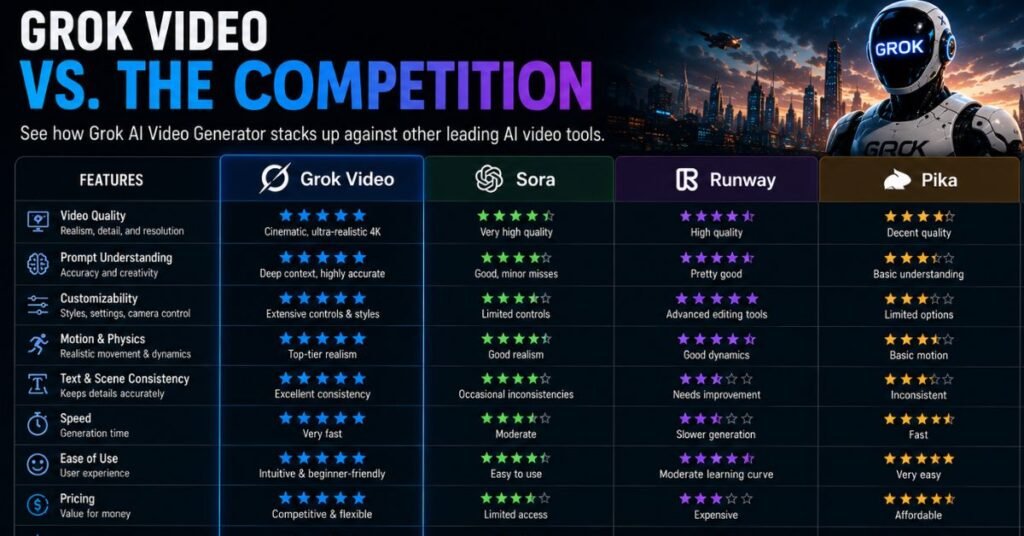
Here’s how Grok Imagine stacks up against the other major players in 2026:
Grok Imagine vs. Sora
OpenAI’s Sora web app was shut down in April 2026, with its API following in September. Before shutdown, Sora was a true text-to-video model — you described a scene and it rendered from scratch with exceptional physical accuracy. Grok is faster and cheaper, but Sora produced higher-fidelity output and supported clips up to 60 seconds. For creators who had built Sora workflows, Grok Imagine is a natural migration path, particularly for image-to-video work.
Grok Imagine vs. Veo 3.1
Google’s Veo 3.1 is widely considered the quality benchmark in 2026. It delivers native 1080p, best-in-class photorealism, and integrated audio that rivals Grok’s. The tradeoff: Veo 3.1 is significantly more expensive per generation and can be slower. Grok wins on speed and price; Veo wins on output quality for professional productions.
Grok Imagine vs. Kling 3.0
Kling 3.0 from Kuaishou topped the Artificial Analysis text-to-video leaderboard in early 2026 with native 1080p output and strong temporal consistency — meaning characters and objects don’t drift or morph between frames. For commercial content requiring consistent character rendering, Kling 3.0 has an edge. Grok Imagine’s advantage is speed and cost.
Quick Comparison Table
| Model | Max Resolution | Max Duration | Audio | Approx. Cost/min |
|---|---|---|---|---|
| Grok Imagine | 720p | 30 sec | Native | $4.20 |
| Veo 3.1 | 1080p | ~30 sec | Native | ~$15+ |
| Kling 3.0 | 1080p | 2 min | Limited | ~$8–12 |
| Sora 2 | 1080p | 60 sec | Native | ~$20+ |
The practical takeaway: use Grok Imagine for volume work and fast iteration, Kling 3.0 when character consistency is critical, and Veo 3.1 when cinematic quality is the top priority.
Best Use Cases for Grok AI Video
Grok Imagine fits certain workflows better than others. Here’s where it genuinely delivers:
Short-form social content. Reels, TikToks, YouTube Shorts, and X posts all benefit from Grok’s 5–20 second render speed. The 720p output looks sharp at mobile display sizes.
Product teasers and ad drafts. Upload a product photo, animate it with subtle motion and atmospheric lighting, and you have a draft ad in under a minute.
Concept testing and iteration. Because generations are fast and cheap, Grok lets you test 10 visual directions in the time it would take another tool to render one. Find the direction, then refine.
Character animation from reference images. Grok’s image-to-video maintains face and style consistency better than its text-to-video path. For character-driven content, start with a strong reference image.
Motion hooks for static content. Turn a strong still photo into a motion graphic by animating the background while keeping the subject stable.
Known Limitations and Guardrails
No tool is perfect. Grok Imagine has clear limits you should plan around:
720p resolution ceiling. Until xAI ships 1080p support, Grok is not suitable for broadcast, professional film work, or any deliverable where HD quality is a client requirement.
Lip-sync accuracy. Audio generates well, but precise lip-sync in dialogue-heavy clips is inconsistent. For talking-head content, dedicated avatar tools (like HeyGen or Synthesia) are more reliable.
Physics and spatial logic. Complex scenes with multiple objects interacting, fluid dynamics, or fine mechanical motion can produce incoherent results.
Daily generation caps. Even on SuperGrok, daily video credits are finite. Failed or moderated generations still count toward your cap, so intentional prompting reduces waste.
Content policy. Grok Imagine has been in the news for its more permissive content guardrails. Realistic deepfakes of public figures, explicit content, and non-consensual intimate imagery are prohibited regardless of mode. Violations can trigger generation blocks, and the moderation review counts against your daily quota.
From Grok Output to Publishable Short
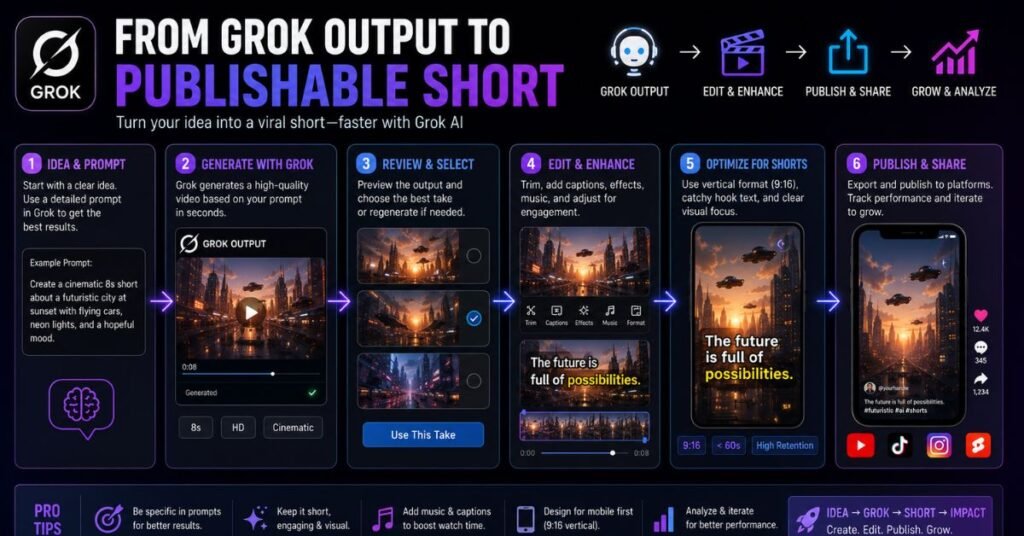
Grok gets you a 720p, 6–30 second clip with native audio. Getting that clip publication-ready typically involves a few more steps:
Captions. Grok doesn’t add subtitles. Use tools like CapCut, Descript, or Adobe Premiere’s auto-caption feature to add text overlays.
Pacing edits. The generated clip is a single take. If you need cuts, transitions, or speed ramps, export to an editor.
Platform specs. TikTok, Instagram Reels, and YouTube Shorts have different export requirements. Ensure your final export matches aspect ratio and file size limits.
Color grading. Grok’s output looks good out of the box, but if your brand has a specific color profile or grade, apply it in post.
A practical workflow: generate multiple 10-second clips in Grok Imagine → import into CapCut or DaVinci Resolve → add captions and transitions → export for each platform.
FAQs
What is the Grok AI video generator?
Grok’s video generator is called Grok Imagine — xAI’s text-to-video and image-to-video tool built directly into the Grok interface, powered by the Aurora engine.
Is the Grok video generator free?
Yes, partially. Free accounts get approximately 5 video generation credits per day, which is enough for testing. For regular use, SuperGrok ($30/month) or SuperGrok Lite ($10/month) are required.
What is the Grok video generator free limit?
Free tier users receive around 5 daily generation credits. SuperGrok Lite allows 15 videos per day at 480p; SuperGrok gives significantly more daily renders at 720p.
How long can Grok generate videos?
SuperGrok supports clips up to 30 seconds. SuperGrok Lite caps at 6 seconds. Free tier clips are similarly short. For longer content, creators chain multiple clips together using the end-frame technique.
What is the Grok AI video generator pricing?
SuperGrok costs $30/month for full video access. SuperGrok Lite is $10/month. API access is $0.07/second at 720p. A 60-second video through the API costs approximately $4.20.
Can I use Grok video generator on mobile?
Yes. Grok Imagine is accessible through the X mobile app and via the Grok mobile app. Most features available on desktop are also available on mobile.
Is there a Grok video generator app?
There’s no standalone app — Grok Imagine is integrated into the Grok app (available on iOS and Android) and the X app. You can also access it via the browser at grok.com.
How does Grok Imagine compare to Sora?
Grok is faster and cheaper. Sora produced higher-quality cinematic output and supported longer clips before its web app was shut down in April 2026. For volume and speed, Grok wins; for pure quality, Sora (when available) and Veo 3.1 were stronger.
What is the Grok video generator prompt format?
The most effective format is: Subject + Action + Camera Movement + Motion Detail + Mood + Duration. Specific, visual language produces better results than abstract descriptions.
Does Grok Imagine generate unlimited videos?
No plan currently offers truly unlimited video generation. SuperGrok includes the highest daily credit allocation for consumer plans; SuperGrok Heavy unlocks approximately 100 video clips per month.
Conclusion
Grok AI video generator is genuinely useful in 2026, but it’s best understood as a speed-and-value tool rather than a quality-first professional platform. If you need to iterate quickly, produce high volumes of short-form social content, or explore visual concepts without committing to expensive renders, Grok Imagine delivers. The native audio alone saves meaningful time compared to tools that require separate audio passes.
Where it falls short — 720p maximum resolution, imprecise lip-sync, physics inconsistencies — are engineering problems xAI is actively addressing. The pace of improvement since early 2025 suggests those gaps will narrow with each model version.
For most creators, the practical approach is to use Grok Imagine for volume and iteration, supplement with Kling 3.0 or Veo 3.1 for polished hero shots, and assemble the final product in a lightweight editor. That combination gives you both the speed of Grok and the quality ceiling of the best models available — without paying premium prices for every single generation.
Start with the free tier at grok.com to test output quality for your specific use case. If it fits, SuperGrok at $30/month is straightforward value.